














Your foreman jots down loads in a notebook, and in the afternoon someone in the office types them all over again into the management software. That is already the hardest part of knowing how to build an app: a specific task that is done twice today. A business app is built in this order: you choose which task it solves, decide who uses it and where, set out what data it captures, test a mock-up, choose the type of app, develop it in stages, test it on the real site and maintain it. Below you will find what is worth preparing, each step explained, the mistakes that make a project more expensive and how we do it ourselves.
What to prepare before building an app
Before talking to any developer, gather material from your own work. With this on the table, the first meeting is for making decisions rather than for discovering how your company works.
- The paper form, Excel sheet or notebook the app is going to replace, with real filled-in examples. Cross out personal data if you prefer.
- The list of people who touch that task: who fills it in, who checks it and who then uses the data to invoice, pay or make decisions.
- The place where it is done: the office, the warehouse, a farm with no signal, the weighbridge cabin or a technician's van.
- The devices you already have: company mobiles, personal mobiles, tablets, computers running Windows or Mac.
- The programs it has to talk to: accounting, invoicing or the management software you already use.
Note down any point you cannot answer as a pending question. Settling it on a sheet of paper costs far less than changing it once it has been programmed.
How to build an app for your business, step by step
There are eight steps. You take the first three with your team; from the fourth onwards you work with whoever programs it, but the decisions still belong to your company.
1. Choose a single task
Start with the task that is repeated most or the one that causes most errors when it is copied out neatly: the daily work report, the incoming delivery note, a machine check, the sales rep's order. A first version that does one thing well launches quickly and people use it. Everything else you think of goes on a list for the second version.
2. Think about who uses it and in what conditions
Write down what the real moment of filling it in is like: standing up, wearing gloves, with sun on the screen, in a hurry because the lorry is waiting. From that come big buttons, few screens and as little typing as possible. An app like this works until the foreman has to type a long text on a mobile held in one hand: that is the day the notebook comes back.
3. Decide what data it captures and where it goes
Go through the current paper form field by field and mark which ones are mandatory, which can come from a drop-down list (customer, job, product, registration number) and which need a photo, signature or location. Then decide where each piece of data ends up: when it has to reach the management software or the accounts, say so from the start. We cover this in more detail in our article on how to connect programs that do not talk to each other.
4. Draw the screens before programming
A paper sketch or a mock-up on the computer is enough to show to the person who will use the app. Ask them to "fill in" a real delivery note on the mock-up and note where they get stuck. Changing a drawn screen takes minutes.
5. Choose a native app, web app or desktop
A task done without signal, with the camera or with a scanner usually calls for an app installed on the mobile; in the office, with a good connection, a web app may be enough. The differences and the questions to help you choose are in native app or web app: which one does your company need.
6. Develop in stages and review each delivery
Ask for short deliveries: first a screen that works with test data, then the next one. Each delivery is reviewed by someone in your company who knows the task. That way, design flaws come out in the first week of work and not at the end.
7. Test it where it will be used
Take the app to the warehouse, the farm or the weighbridge, on your people's real mobiles. For a few days, it is worth filling in the usual paper form and the app in parallel and comparing them at the end of the day. When the two match, the paper is no longer needed.
8. Launch it, train your people and maintain it
Decide who teaches people to use it, who to call if it fails and who sets up a new employee. In addition, Android and iOS get updated and the app has to keep pace. What that contract should cover is set out in maintenance of bespoke software and what it includes.
Once the task is clear, our team turns it into an app for Android, iOS or the web and then stays on with support: tell us which task you want to take to the mobile and we will tell you how we would approach it.
What your company does and what the developer does at each stage
This table helps you split the work from the first meeting and know what you need to have ready at each point.
| Stage | Your company | The developer | What should come out of it |
|---|---|---|---|
| Task and users | Chooses the task and explains who does it and where | Asks about the unusual cases | A page describing the task |
| Data | Provides the real paper form or Excel sheet | Proposes lists, mandatory fields and connections | The list of fields and where they go |
| Mock-up | Tests it with whoever will use the app | Draws the screens | Approved screens |
| Type of app | Says whether there is signal and which mobiles are in use | Recommends native, web or desktop | A written decision |
| Development | Reviews each delivery | Programs in stages | Versions that can be tested |
| Testing | Uses the app on the real site | Fixes what comes up | App ready for day-to-day use |
| Launch | Organises the training | Trains, supports and updates | People using it without paper |
Common mistakes when commissioning a business app
- Designing it in the office without it being seen by whoever will use it in the warehouse or out on the road.
- Leaving every field as free text: later no one writes a customer's name the same way and the reports do not add up.
- Assuming there will always be signal.
- Not deciding where the data is stored or who makes the backups. We explain this in security and backups for your management software data.
- Comparing quotes that do not include the same things. To request them properly, read how much bespoke software costs and what it depends on.
- Signing without asking about support, the team and who owns the code. You will find a checklist in what to ask a software consultancy before signing.
Before signing, ask in writing who will maintain the app when a new version of Android or iOS comes out and how a fault is reported. An app with nobody behind it stops working on the foreman's new mobile.
How we do it at Infonet with the Agrocom app
We have been developing mobile apps for Android and iOS since 2013, and we have been making management software in Huelva since 1999. We have developed more than fifty different apps: some for the general public, with thousands of downloads, and others designed for work inside a company. More than 500 companies use our solutions today.
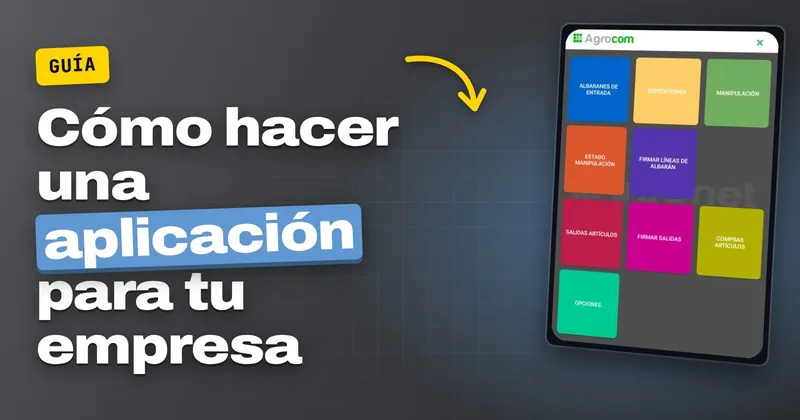
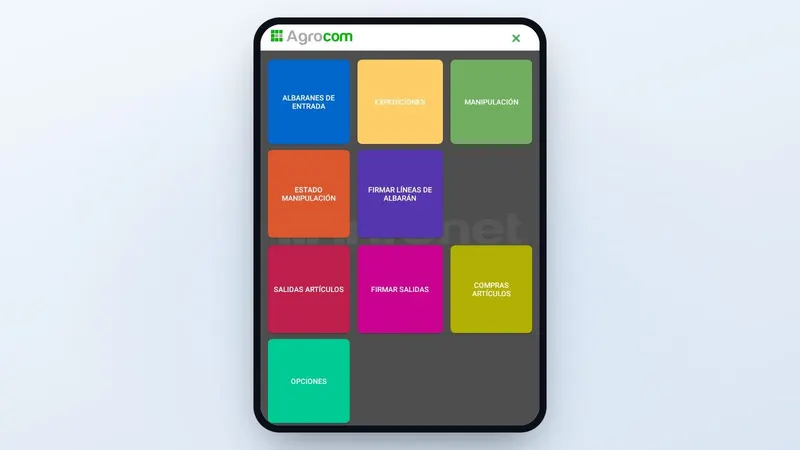
One example of a business app is the Agrocom one, our software for fruit and vegetable marketing companies. In the mobile menu, each option is a warehouse task with its own screen: incoming delivery notes, dispatches, handling, outgoing goods and delivery note signing. It is what we propose in the steps above: specific tasks, big buttons and the signature captured on the screen itself.
The difference lies in who answers afterwards. All our solutions are developed entirely by our own team, so support and problem handling happen in real time, and every customer receives training to use the software. The types of apps we make are on the app development page; for a web or desktop program, see the one on bespoke software.
What to do this week to get your own app
- Choose the task and photograph several real examples of the paper form or Excel sheet that captures it today.
- Ask the person who does it every day where they do it, on which device and what they find unnecessary on the current paper form.
- With that, ask whoever is going to program it for a mock-up of the screens before agreeing the quote.
If you would like us to prepare that mock-up, request information using the form below or call us on +34 959 54 07 12, Monday to Friday from 8:00 to 15:00 and from 16:00 to 19:00. You will be attended by the same Huelva team that would program it.